Adding codes to output a grid
Adds codes to output grid.
First, add codes to output a very simple grid, to check whether the program works together with iRIC successfully.
List 20 shows the source code with lines to output grid. The added lines are shown with highlight.
 1program SampleProgram
 2  implicit none
 3  include 'cgnslib_f.h'
 4
 5  integer:: fin, ier
 6  integer:: icount, istatus
 7  integer:: imax, jmax
 8  double precision, dimension(:,:), allocatable::grid_x, grid_y
 9  character(200)::condFile
10
11  icount = nargs()
12  if ( icount.eq.2 ) then
13    call getarg(1, condFile, istatus)
14  else
15    stop "Input File not specified."
16  endif
17
18  ! Opens grid generating data file.
19  call cg_open_f(condFile, CG_MODE_MODIFY, fin, ier)
20  if (ier /=0) stop "*** Open error of CGNS file ***"
21
22  ! Initializes iRIClib. ier will be 1, but that is not a problem.
23  call cg_iric_init_f(fin, ier)
24
25  imax = 10
26  jmax = 10
27
28  ! Allocate memory for creating grid
29  allocate(grid_x(imax,jmax), grid_y(imax,jmax)
30
31  ! Generate grid
32  do i = 1, imax
33    do j = 1, jmax
34      grid_x(i, j) = i
35      grid_y(i, j) = j
36    end do
37  end do
38
39  ! Outputs grid
40  cg_iric_writegridcoord2d_f(imax, jmax, grid_x, grid_y, ier)
41
42  ! Closes grid generating data file.
43  call cg_close_f(fin, ier)
44end program SampleProgram
When it was compiled successfully, copy the executable file to the folder you created in Creating a folder, and rename it into the name you specified as [executable] attribute in Defining basic information. This time, rename into "generator.exe". Copy the DLL files into that folder, that is need to run the grid generating program.
Now check whether the grid generating program can be launched from iRIC successfully.
Starts a new project with solver "Nays2DH", and select "Sample Grid Creator" as the grid generating algorithm like in Defining basic information. The [Grid Creation] dialog (Figure 36) will open.
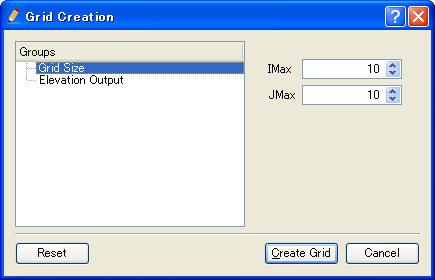
Figure 36 The [Grid Creation] dialog
Click on [Create Grid], and a 10 x 10 grid will be created and loaded on the pre-processing window (Figure 37).
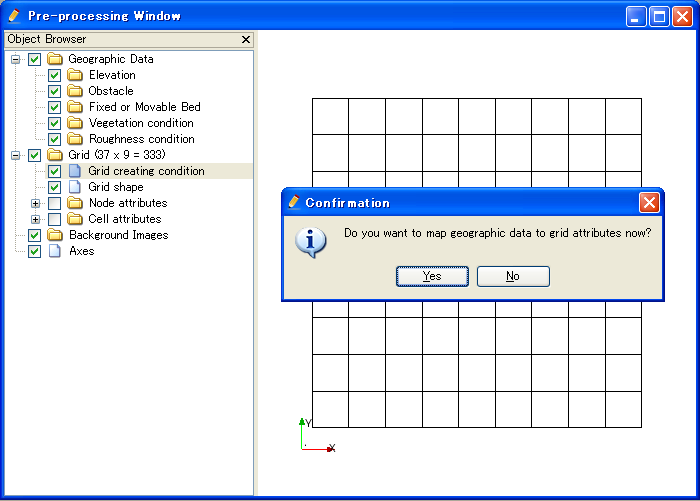
Figure 37 The pre-processing window after creating grid
Refer to Outputting calculation grids for the detail of subroutines to output grids. Note that in Outputting calculation grids the subroutines to output three-dimensional grids are listed, but they can not be used in grid generating programs. In grid generating programs, only subroutines to output two-dimensional grids can be used.